You can set extra languages and voices on your smartphone. For example, if you're not getting navigation instructions in Dutch, follow the steps below.
Android
How to do this?
If you're using a Samsung phone, first have a quick look at the bottom section about Samsung on this page.
- Tap on Settings
- Tap the magnifying glass in the top right to search
- Search for "Text to Speech"
- Tap on 'Text-to-speech settings' (or Bixby Vision settings)
- Scroll down and tap on 'Text-to-speech settings'
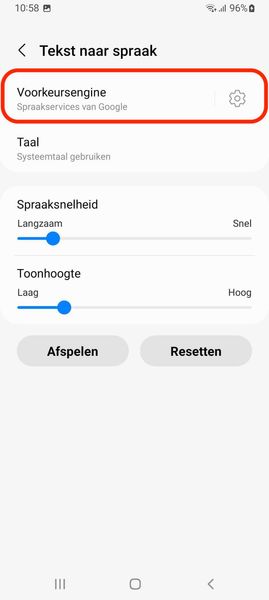
- Tap the gear icon next to 'Preferred engine'
- Tap on "Install voice data" and choose the language you want to install.
At this point, you might need to download an extra language pack before you can continue.
You'll then see a list of different voices you can pick for each language. - Choose the voice you want. That one will be used from now on.
iOS
How to do this?
- In Settings
 tap on 'Accessibility' → 'Spoken Content'.
 - You can adjust the following settings:
- Voices: Choose a voice and language variation.
- Speaking Rate: Slide the bar to make it faster or slower.
- Pronunciation: Tell your phone how you'd like specific words or phrases to be pronounced.
You can find more info on this page.